Hawkeye Search - VS Code
Search your indexed codebase directly from VS Code and integrate your support tools.
Built for developers working in large codebases where normal editor search can become slow, noisy, inaccurate or disconnected from the rest of the project workflow. We want to give you the overview you deserve. All of it runs locally.
Startup
Hawkeye Search adds a Hawkeye activity bar view inside VS Code. From there you can search, filter groups, open results and run configured tools against files in your project.
- Requires the Hawkeye desktop application for codebase search.
- Uses your local Hawkeye installation and indexed project data.
- Allow filtering per project or however your setup is.
Options
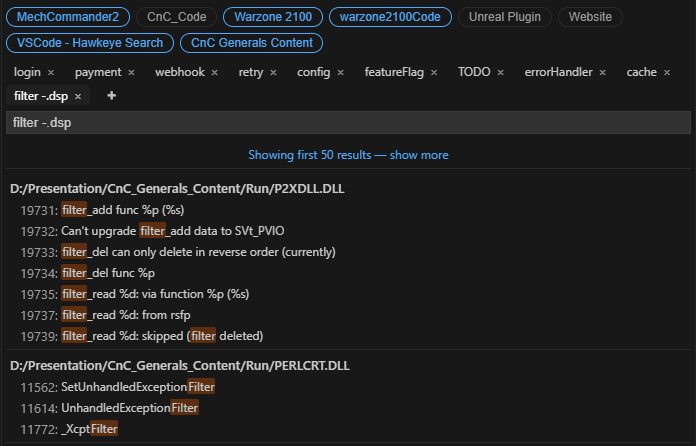
Use Hawkeye → Options to configure the local Hawkeye install path, search delay, initial result/max count and executable tools.
- Open the Command Palette and run Hawkeye → Options.
- Optionally set programopener.exe if you want editor launches to reuse existing application instances.
- Adjust the search delay and returned results.
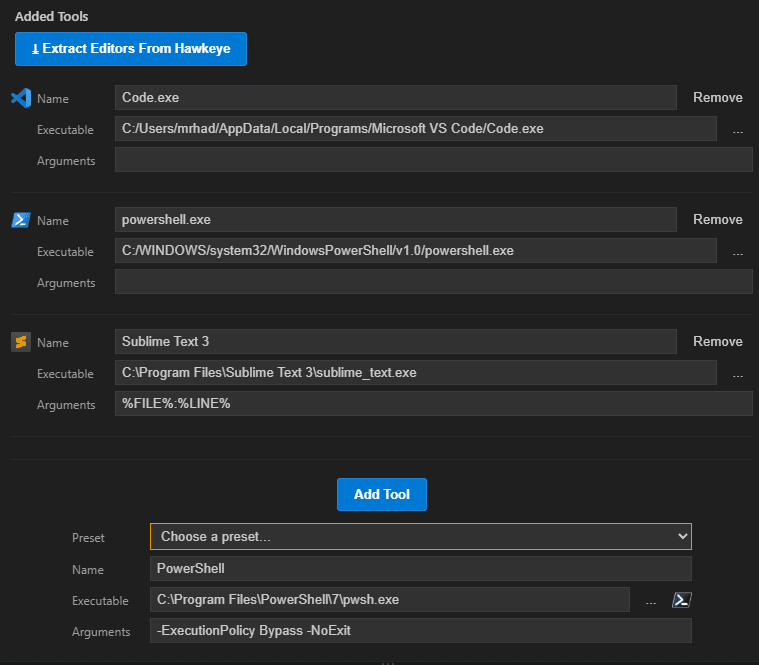
- Add external tools or extract existing editor commands from Hawkeye.
Search From VS Code
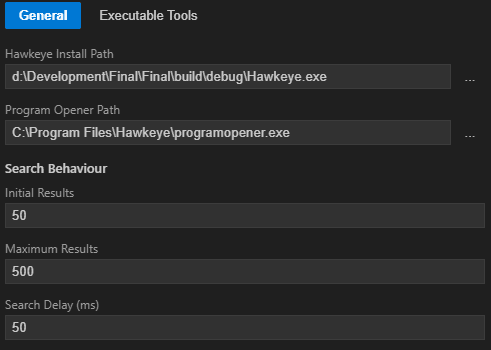
Search directly from the Hawkeye panel in VS Code.
- Open the Hawkeye activity bar icon.
- Type a query to search the active groups.
- Use multiple search tabs to keep different searches open, remembered between launches.
- Use file-only search when you want matching filenames instead of matching content lines.
- Right click a result to open it or run a configured external tool.
- Left click a result to open in VS code.
- Click show more to see more results than the initial results(capped to min results).
Groups and Filters
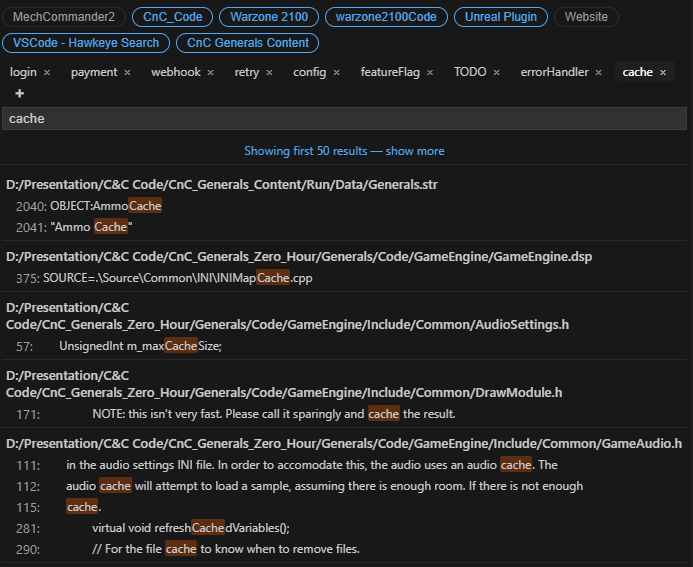
Hawkeye groups appear as selectable filters in the VS Code search panel. This makes it easier to narrow a search to code, content, tools, documentation or any other groups configured in Hawkeye.
- Toggle groups on or off from the search panel.
- Right click a group to search only that group or all groups except that group.
- Use the filters to keep searches focused in large workspaces or multi-project repositories.
External Tools
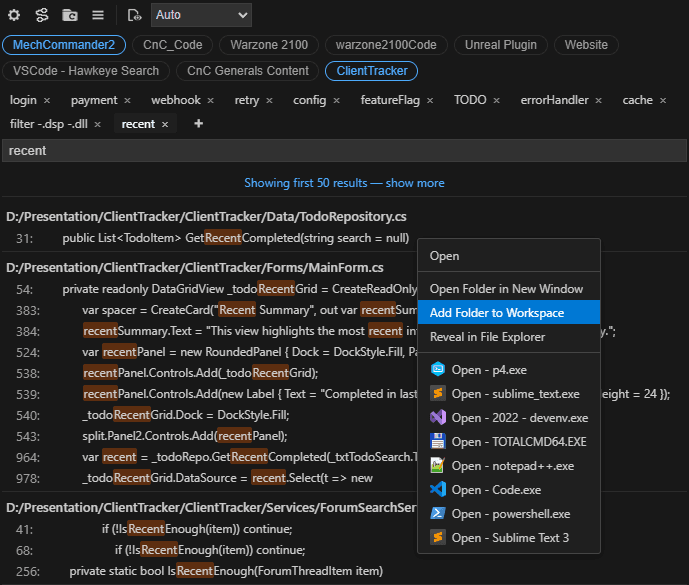
The extension can run configured tools against the active editor file or a selected search result. This makes Hawkeye useful as both a search panel and a launcher for your normal workflow.
- Add tools in Hawkeye → Options.
- Use %FILE% and %LINE% placeholders in command arguments.
- Run configured tools from the right-click menu on search results.
- Use Hawkeye: Run Command 1-4 to run tools against the active editor file.
- Use Open Folder in New Window, to quickly go between projects in VS Code.
Commands
Hawkeye Search for VS Code adds support for commands.
- Extract Editors From Hawkeye → Load the tools setup inside Hawkeye backend
- Choose, Name, Executable Location and Arguments that will be fed into the command.
- %FILE% → Replaced wtih current file
- %LINE% → Replaced wtih current line
- Add tools from presets
Give feedback?
We are always looking for improvements - info@zaragsoft.se