Visual Studio Add-In
We created a search and file engine plugin for Visual Studio 2017-2026 using our 3rd party interface.
Visual Studio Interface
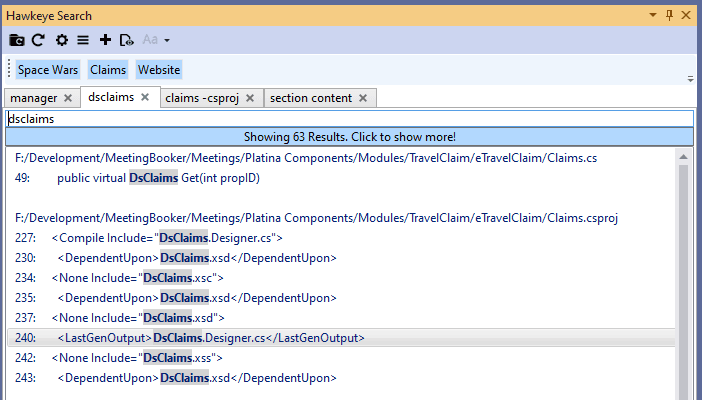
Add Hawkeye to your Visual Studio development environment(2017-2026) this mirrors the setup that you have inside your back-end of Hawkeye. Make fast searches and get a good overview directly from Visual Studio.
Click on the result to go to the right line in the right file.
Multiple tabs allow you to have overview as well.
Find Files dialog
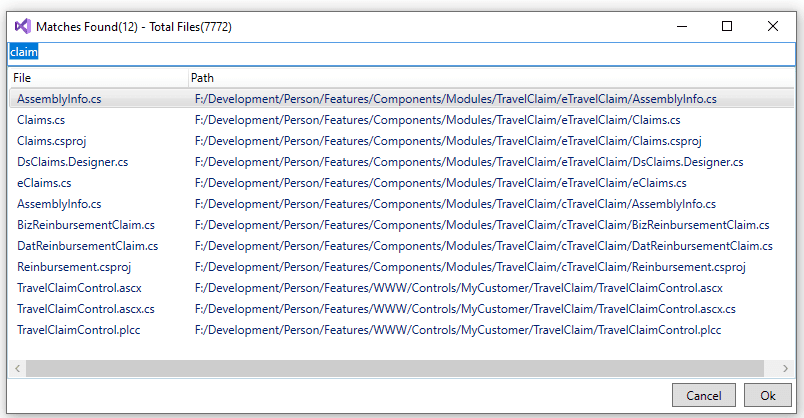
Using our File Engine, you can quickly search through all the files in your Hawkeye setup using the streamlined 'Find Files' dialog. Even in large projects, File Engine delivers instant results, making it dramatically easier to locate what you need directly inside Visual Studio.
Click on the file you want to open in Visual Studio.
Shortcuts
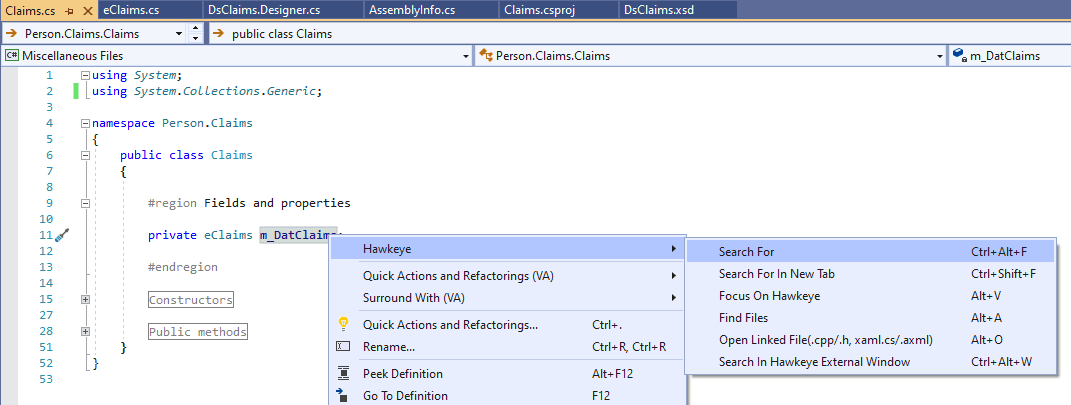
Right clicking inside Visual Studio will show you the shortcuts for Hawkeye vs add-in.
"Search For" - Search for selected text inside current tab in the Hawkeye add-in.
"Search For In A New Tab" - Search for selected text inside a new tab.
"Focus On Hawkeye" - Shortcut to focus on Hawkeye to avoid letting go of keyboard.
"Find Files" - Open "Find Files" and search for the selected text.
"Open Linked File" - Open matching file. File .h to .cpp for instance.
"Search In Hawkeye" - Open the Hawkeye back-end and search.