Unreal Engine Plugin
We created a search and overview plugin for Unreal Engine - Fab
Please send feedback so that we can improve it - info@zaragsoft.se
Startup
On initial startup there is 2 choices, running with Hawkeye external installed or not.
- Choice - Hawkeye External Application Install - Press 'Connect To Hawkeye'
- Search functionality, searching inside and outside the project.
- Dynamically add your choice of executables.
- Right click to trigger your dynamic editor list in content browser and in result list of the Hawkeye search.
- Setup With External
- Choice - Hawkeye External Application Not Installed - Press 'Add External Editors'
- Dynamically add your choice of executables.
- Right click to trigger your dynamic editors list in content browser.
- Setup Without External

Setup With Hawkeye
If connect button is visible - Press it and download or startup latest Hawkeye installation. Hawkeye 1.0.2 has the latest support for the Unreal plugin. After connection has been made the top bar will become visible. In the top bar multiple things can be done.
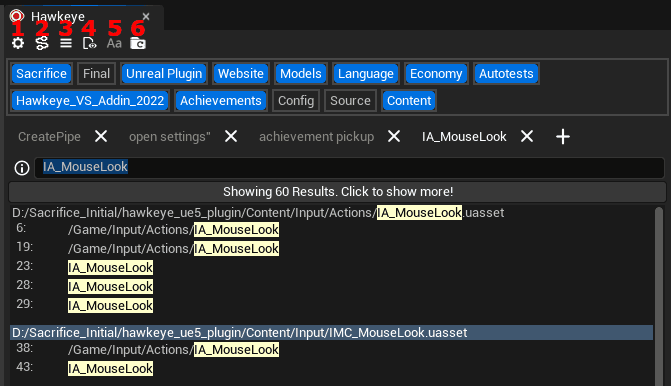
- Settings - This will open the settings dialog inside Unreal where you can set specifics for the plugin.
- Separate picture for this below.
- Load groups from external Hawkeye
- Only search on filenames.
- Case sensitivity - Off:Ignored, On:Match case, Auto:Match if camelcase.
- Rescans the external Hawkeye application, needed if you have added new folders into the program.
Group Setup
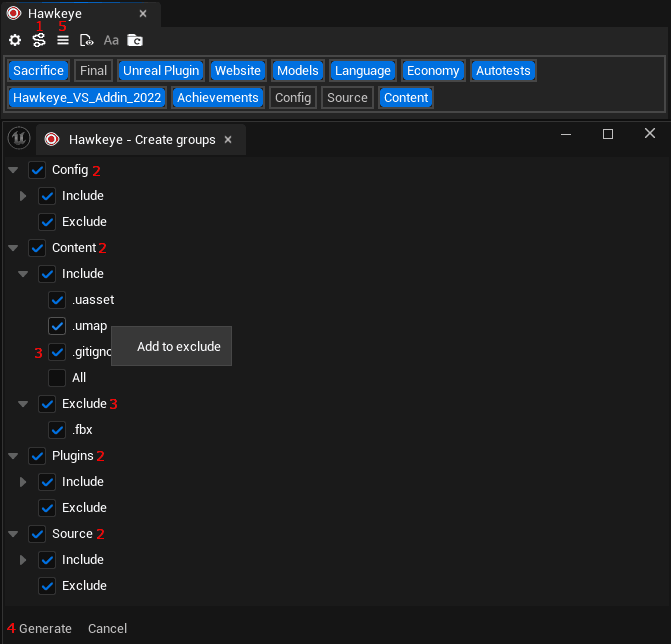
If you have downloaded Hawkeye and no groups has been setup. select the groups you want to create and press 'Generate'. Now you will be able to search inside these groups.
- Press 'Create groups from project'.
- Select the groups you want to create.
- Choose any filetypes to exclude. Not load inside this group.
- Generate to setup the groups inside external Hawkeye.
- Press 'Refresh Groups' to make the new groups appear inside plugin.
Search
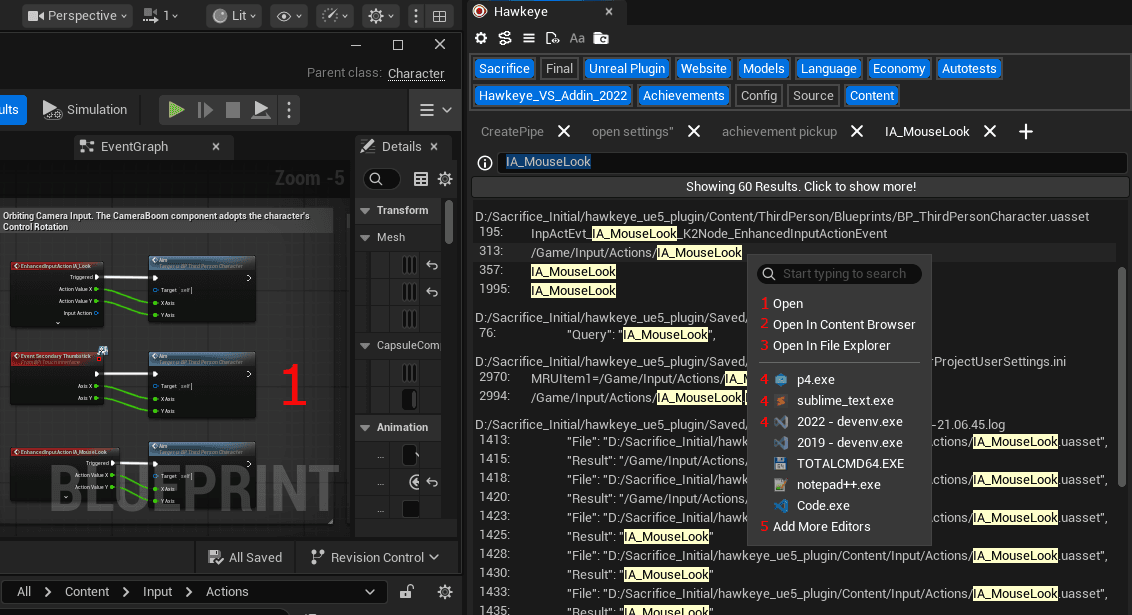
After groups has been setup you can start to search in the data added. For instance searching for an input action and see where its specified.
- Right click and select open or double click to open based on file. Blueprint, Model etc.
- Open inside content browser.
- Open in explorer.
- Depending on how many editors added this is dynamic, open in p4,sublime, vs etc.
- 'Add more editors' dynamic list of editors that can be added.
Editors - From Hawkeye
When right clicking inside the content browser or the search results you can add custom editors, these can be setup inside options or loaded directly from the Hawkeye application.
- Click and enter Hawkeye Search - Plugin settings.
- If you have external editors setup inside Hawkeye you can press the 'Load' button.
- After they have been loaded they will appear here.
- Right click in results view or asset browser will show your commands.
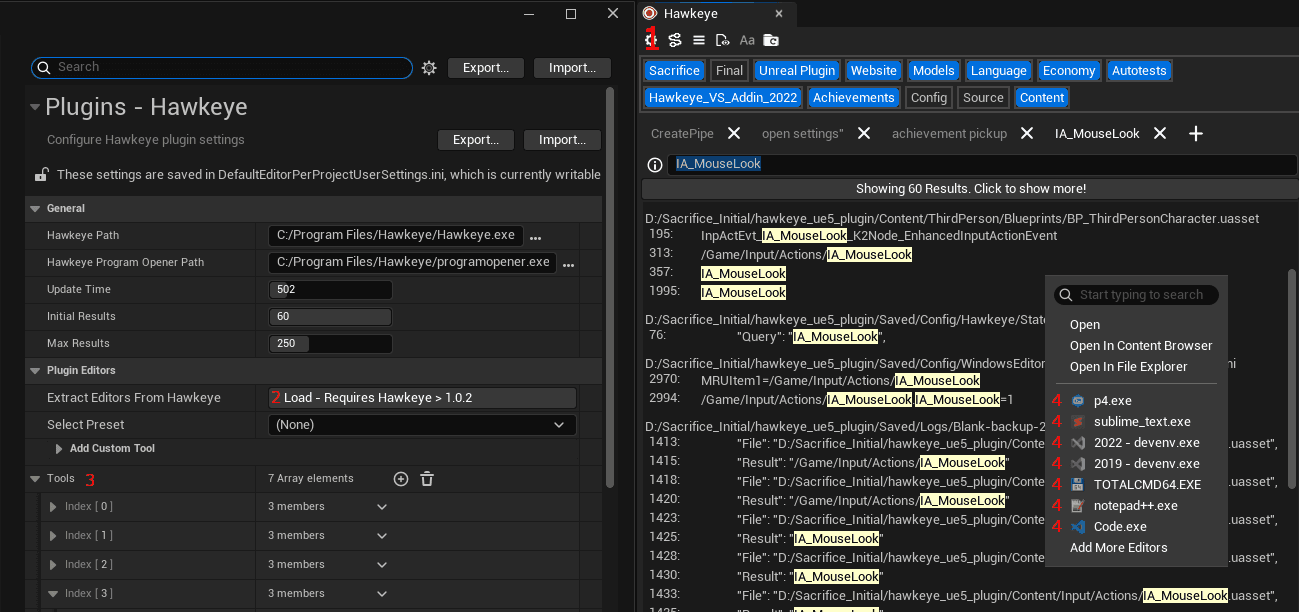
Editors - Startup
This is where you start to setup your custom editor paths
- Click 'Add External Editors' to add more editors to the content browser list.

Editors - Options Page 1
After opening the options page you can start to add your own dynamic editors
- Choose preset from the dropdown.
- We tried to add as many as possible. Let us know please if something is missing.
- Please contact us if you want more customizable arguments, for instance adding the username dynamically or similar arguments.
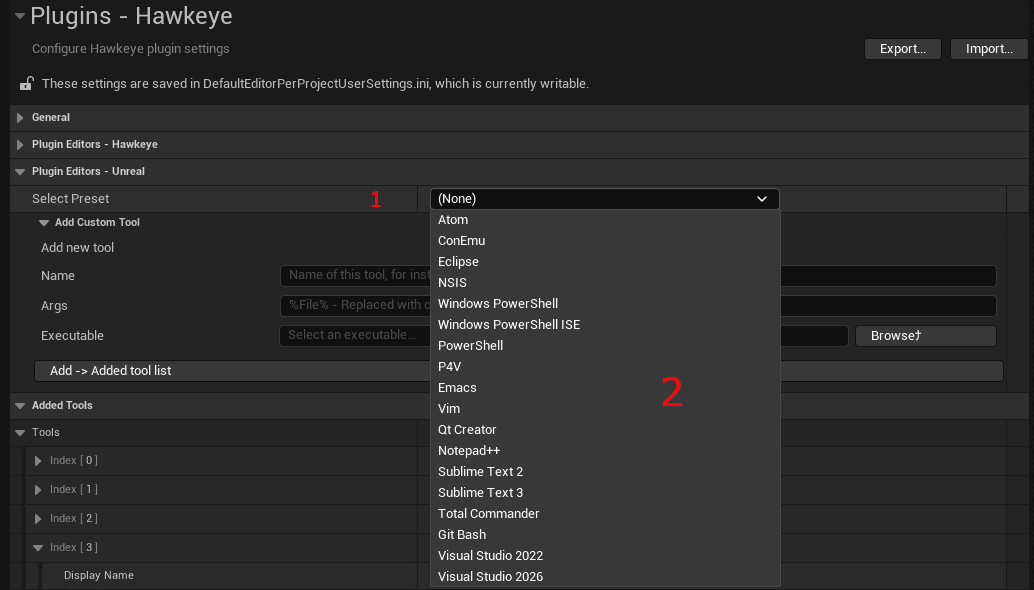
Editors - Options Page 2
- After preset has been chosen the properties below will be filled from that preset.
- Name - Either filled by preset or by you. This will be shown in the right click menu as the action.
- Args - The arguments that will be fed to the action. %File% will be replaced by clicked file. Can also include for instance p4 workspace path, ExecutionPolicy or what works for your programs and arguments you use
- Executable that will launch when command is clicked inside right click menu.
- Browse executable will start inside start menu folder if path is incorrect, otherwise opens in path.
- Press 'Add' to add into Tool list.
- After adding, tools will appear here.
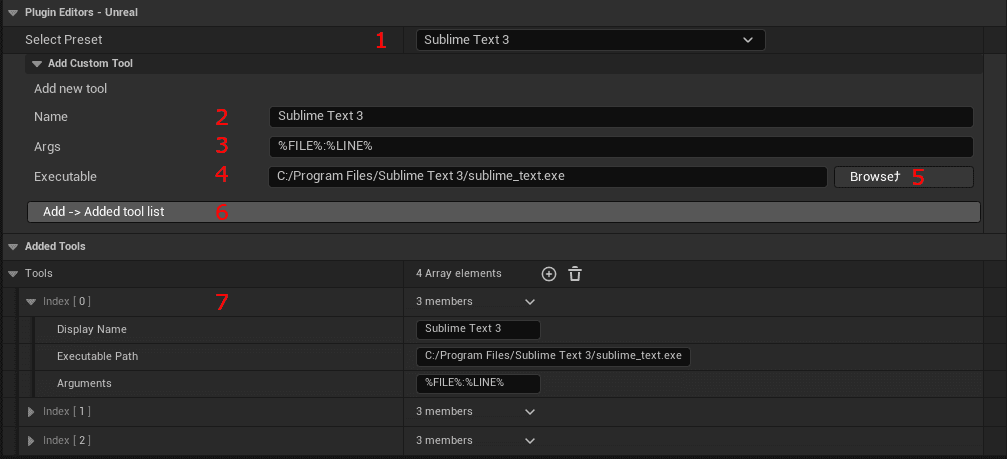
Editors - Commands
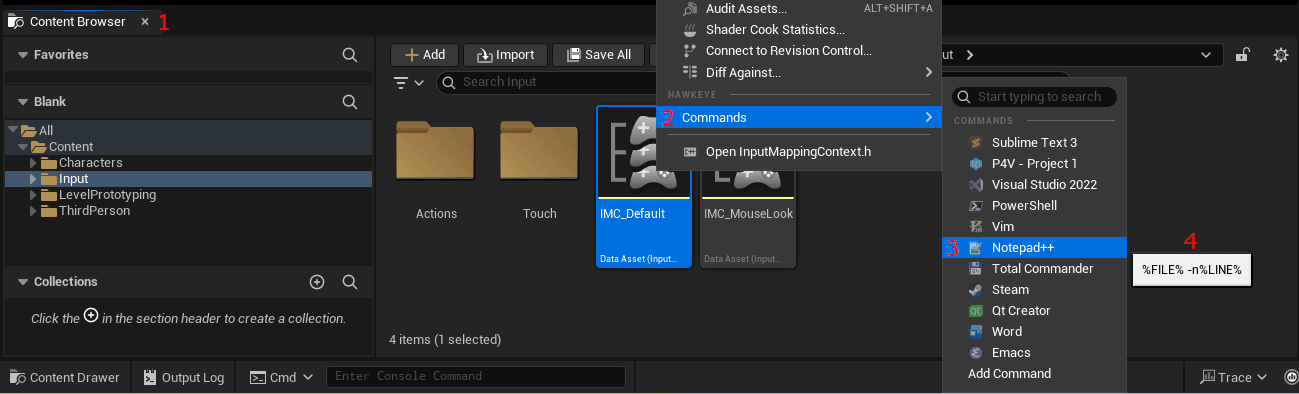
- All the added commands will be visible when right clicking on a file inside the content browser.
- List of commands.
- Click on the command you want to execute, hover to see what arguments it will feed to that executable.